Free countdown timer for website: boost urgency and sales
Learn how to add a free countdown timer for website to boost urgency and conversions. Step-by-step tips on choosing, customizing, and embedding your timer.
Adding a free countdown timer to your website is one of those simple, yet surprisingly powerful, tactics that can genuinely create urgency and push visitors to act now. By putting a ticking clock on a limited-time offer or an upcoming deadline, you tap directly into that nagging fear of missing out.
How a Ticking Clock Drives Real Urgency
Have you ever noticed how a ticking clock instantly changes your behavior? It's a simple trick that transforms someone who's "just looking" into an active buyer. This isn't just a marketing gimmick; it's a direct line to the psychological triggers that influence how we make decisions.
The main driver here is the Fear of Missing Out (FOMO). We've all felt it. When visitors see that a sweet discount, exclusive bonus, or event registration is about to vanish forever, it sparks a strong emotional response. The vague idea of "I'll get to it later" suddenly becomes a hard deadline of "I need to do this right now."
Scarcity and Exclusivity in Action
A free countdown timer for a website also does a fantastic job of creating a sense of scarcity and exclusivity. Think about these common scenarios:
- E-commerce Flash Sales: An online store is running a 24-hour flash sale on a hot-ticket item. That little timer on the product page is a constant reminder that the deal is slipping away, which is why you always see a massive spike in purchases during the final few hours.
- Webinar Registrations: A B2B company is promoting an upcoming webinar with limited seats. The countdown to the registration deadline makes the event feel more exclusive and in-demand, pushing people to sign up before they lose their spot.
In both situations, the timer makes the offer feel more valuable simply because its availability is limited. This isn't just theory—marketing studies consistently show that adding a countdown timer can boost conversions by up to 8-10% on average.
By making time a visible and finite resource, you shift the user's focus from "Should I buy this?" to "When should I buy this?" The answer becomes obvious: before the clock hits zero.
Understanding how to use urgency is a cornerstone of broader strategies to improve conversion rates for any business. It's about more than just slapping a timer on a page; it's about framing your offer in a way that demands immediate attention and a quick decision.
Finding the Right Free Countdown Timer Tool
When you start looking for a countdown timer, you'll quickly realize there are tons of options out there. The trick isn't finding the best tool, but the best tool for your specific needs. It really boils down to your website's platform and how much you want to tinker with the design.
For instance, if you're running a WordPress site, the plugin directory should be your first stop. You’ll find a massive library of timers built for easy integration. These plugins usually hit the sweet spot between simplicity and features, letting you drop a timer onto a page with a simple shortcode. Just how popular is this route? Apresly reports that the Simple Custom Countdown Timer plugin alone is used on over 61 million live websites. That's a huge number.
This screenshot from the WordPress plugin directory just scratches the surface. With so many choices, always check the reviews, ratings, and active installation counts. This little bit of homework can save you a lot of headaches from compatibility issues down the road.
Standalone Widgets vs. Platform Plugins
What if you're not on WordPress? Or maybe you just want more creative control? In that case, a standalone JavaScript or HTML widget is your best bet. These are generated by third-party services and give you a snippet of code you can paste anywhere on your site—whether it’s built on Shopify, Squarespace, or a totally custom platform.
The core difference is a trade-off: control vs. convenience. Plugins are almost always faster to set up within their native ecosystem, but standalone widgets offer universal compatibility and often more granular customization. The catch? You might have to get your hands dirty with a little bit of code.
Here's a quick table to help you compare some of the most common approaches and decide which one fits your situation.
Comparing Popular Free Countdown Timer Solutions
This table breaks down the key features of different free timer tools to help you choose the best fit for your website's platform and goals.
| Tool Type | Best For | Customization Level | Technical Skill Required | | :--- | :--- | :--- | :--- | | WordPress Plugin | WordPress users seeking quick and easy integration. | Medium to High | Low (often just copy/paste a shortcode) | | Shopify App | Shopify store owners wanting seamless e-commerce features. | Medium | Low (usually a one-click install) | | Standalone JS/HTML Widget | Any platform (Squarespace, Wix, custom sites). | High | Medium (requires pasting code into an editor) | | No-Code Website Builder Element | Users of builders like Webflow that have built-in timers. | Low to Medium | Low (drag-and-drop) |
Ultimately, whether you pick a dedicated plugin or a flexible widget, the right tool is the one that gets the job done without slowing you down.
No matter which path you choose, keep these three non-negotiables in mind:
- Customization: Can you easily tweak the colors, fonts, and sizes to make it look like it truly belongs on your site? A mismatched timer sticks out like a sore thumb.
- Responsiveness: Does it look good and work correctly on a phone? With so much traffic coming from mobile, this is absolutely critical.
- Performance: Is the code lightweight? A clunky timer can drag down your page load speed, which is bad for both users and SEO.
Answering these questions first will ensure you pick a timer that not only builds urgency but also enhances your website's experience. If you're thinking about using timers beyond your website, check out our guide on using a free online countdown timer for social media platforms.
Customizing Your Timer to Maximize Impact
A generic, out-of-the-box timer often gets ignored. It just blends into the background. To turn that free countdown timer on your website into a real conversion machine, you have to do more than just drop it on the page. Real impact comes from thoughtful customization that lines up perfectly with your campaign.
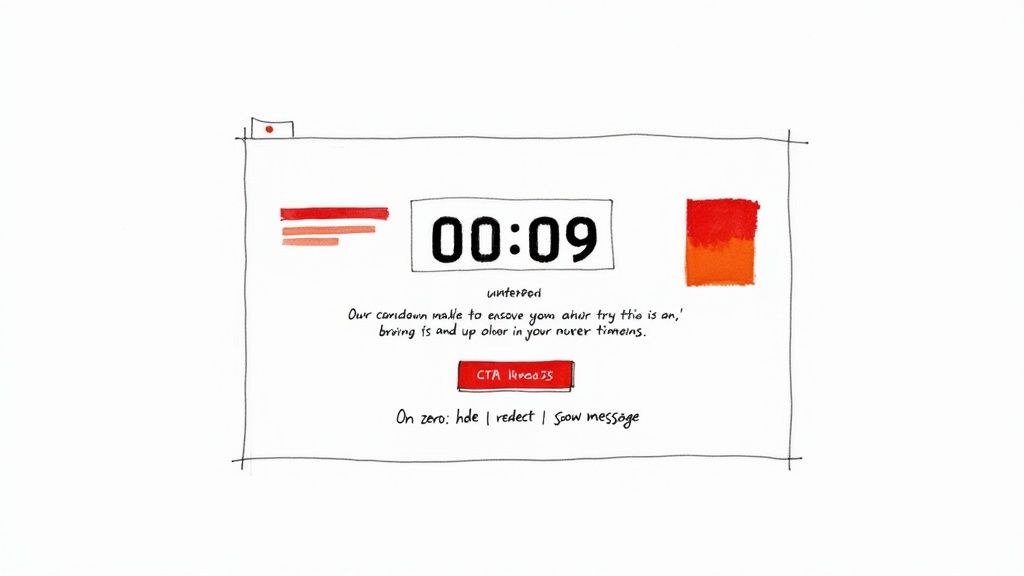
This all starts with making it look like it belongs. Your timer shouldn't feel like a foreign object that just landed on your page. Stick to your brand’s color palette, but also think about the psychology behind your color choices.
Maybe your main brand color is a calming blue. That's great, but for the timer, you might want to use a high-contrast accent color like orange or red. This creates a pop of urgency that grabs attention without clashing with your overall design.
Fine-Tuning Functional Settings
Beyond how it looks, you need to decide how your timer behaves. What happens when the clock finally hits zero? This is a detail so many people overlook, but it’s critical for the user journey. You need a clear plan for the moment your offer officially expires.
Consider these post-countdown actions:
- Hide the Offer: This is the simplest option. The "Add to Cart" button or discount code just vanishes, reinforcing that the chance is gone.
- Display a Message: You could swap the timer with a quick message like, "Sorry, this offer has expired." This can subtly nudge people to check out your other current deals.
- Redirect the User: Send visitors to a completely different page. Maybe it’s a page with an alternative offer or a signup form to get notified about the next sale.
The goal is to build a logical and consistent experience. If your offer is still available after the timer runs out, you're eroding trust. It makes all your future campaigns feel less urgent. Authenticity is everything.
The text right around your timer—the microcopy—is another small thing that makes a big difference. Instead of a boring "Sale Ends In," get creative. Try something more action-oriented like "Discount Vanishes In" or "Lock In Your Price Before Time Runs Out."
This tiny tweak in language can seriously boost engagement and make the deadline feel much more real. If you’re looking for more design ideas, we’ve got plenty of inspiration on how to make timers for different platforms in our related guide.
Getting Your Countdown Timer Live on Your Website
You've designed the perfect timer, and now it's time for the big finale: getting it live on your website. This part might sound a bit technical, but trust me, it’s surprisingly straightforward these days, even if you’ve never touched a line of code in your life. The method you'll use really just depends on what platform your website is built on.
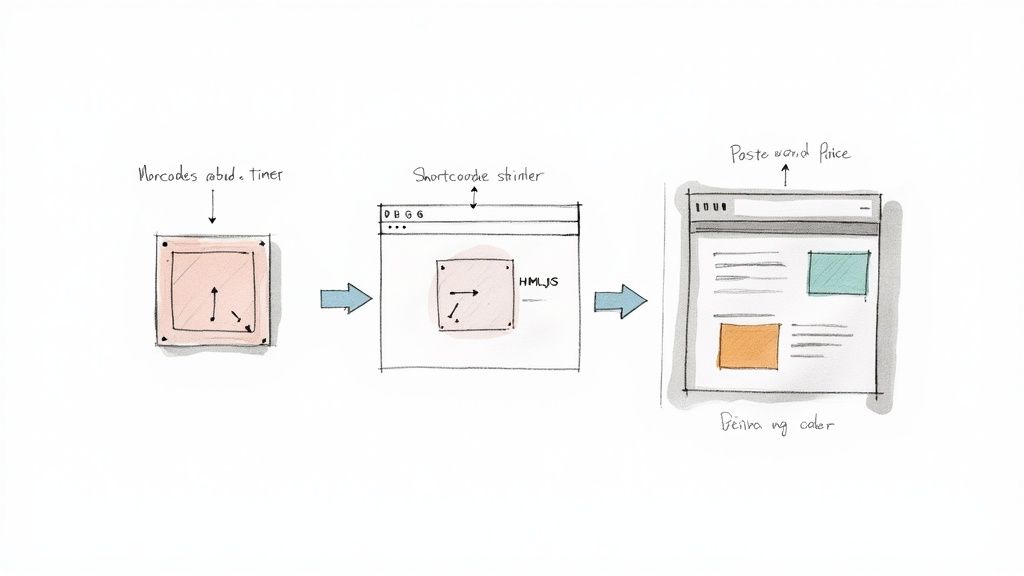
Most countdown tools give you one of two ways to publish your timer: a shortcode or an embed snippet. Let's break down how each one works in the real world.
For WordPress Users: The Shortcode Method
If your site runs on WordPress, you’re in luck. Your timer plugin will most likely generate a shortcode. Think of it as a tiny, bracketed piece of text that acts as a placeholder for your timer. It'll probably look something like [countdown_timer id="123"].
Adding it to your site is as simple as copying that shortcode and pasting it right into the text editor where you write your pages or posts. The second you hit "Publish," WordPress magically swaps that code for your fully functional, beautifully designed timer. It's easily the quickest way to add a free countdown timer for website platforms like WordPress.
For Everyone Else: Using an HTML Snippet
Building your site on Shopify, Squarespace, or Wix? You'll probably be using an HTML or JavaScript embed code instead. After you're done customizing your timer, the tool will hand you a block of code. Your only job is to paste this snippet into the right spot.
Here’s the usual process on most platforms:
- Find an HTML Block: In your page editor, look for a module or block called "HTML," "Code," "Embed," or "Custom Code."
- Drag and Drop It: Place this block exactly where you want the timer to show up on the page.
- Paste the Code: Copy the entire snippet from your timer tool and paste it into that HTML block.
- Save and Check It Out: Save your changes, and your countdown timer should appear right where you placed it.
Pro Tip: Placement is everything. A site-wide banner timer is fantastic for a big sale because it creates constant urgency. But for a flash sale on a specific item, placing the timer right on that product page is way more effective—it ties the urgency directly to the "Add to Cart" button.
This embeddable code approach gives you total flexibility, letting you add a timer to pretty much any website builder out there. If you want a more detailed walkthrough, you can find a complete guide on how to embed a countdown timer in a website that includes platform-specific advice.
Advanced Strategies to Amplify Your Results
Okay, so you've dropped a free countdown timer for your website. That's a great start, but the real magic happens when you start thinking bigger. Don't just see it as a widget on a page—think of it as the heartbeat of a full-blown urgency campaign that spans every channel. The goal is to create a consistent, inescapable sense of scarcity wherever your audience bumps into your brand.
This is where you can get clever and pair your timer with other marketing tools. For example, have you ever tried combining a timer with an exit-intent popup? It’s a killer combo. Just as someone is about to click away, you hit them with a last-chance offer powered by a ticking clock. It’s a powerful way to turn a bounced visitor into a last-minute buyer.
Syncing Urgency Across Channels
To really crank up the pressure, that timer on your website can't be a solo act. You need to echo that same deadline across your other marketing channels, especially email. If your landing page shows a sale ending in 24 hours, your email subscribers should get a message with a subject line like, "Last Chance! Your 25% Discount Vanishes Tonight." This creates a seamless experience, reinforcing the deadline no matter where they see it.
When you synchronize your messaging like this, a simple timer becomes a core part of your sales funnel. The numbers back this up, too. Popups that include countdowns can hit an average conversion rate of 11.09%, with some campaigns doing even better. You can discover more insights about countdown conversions and see just how effective this pairing can be.
The secret is making the urgency feel authentic and omnipresent. When the deadline is consistent on your site, in their inbox, and maybe even on your social media, it becomes much more real and persuasive.
Of course, none of this works if your site is slow. A laggy page will kill any momentum your timer builds. Before you do anything else, make sure your site's foundation is solid. You can get your site up to speed by using these key website performance optimization techniques.
A Few Common Questions About Website Countdown Timers
Whenever you're adding a new element to your site, a few questions are bound to pop up. Let's tackle the most common ones I hear so you can get your countdown timer running without a hitch.
Will This Thing Slow Down My Website?
That's the million-dollar question, isn't it? And it's a smart one to ask. The good news is that most modern countdown timers are built to be incredibly lightweight. The code is efficient and designed specifically to have a minimal—if any—impact on your page load speed.
That said, it's always a good habit to double-check. After you've installed the timer, run a quick speed test just to be sure. Peace of mind is priceless.
What Happens When the Timer Hits Zero?
You're in the driver's seat on this one. The best timer tools give you full control over what your visitors see once the clock runs out. A few of the most popular options include:
- Making the timer disappear along with the special offer. Poof, it's gone.
- Showing a custom message like, "Sorry, this deal has expired!"
- Redirecting visitors to a different page, maybe one with an alternative offer or your main products page.
Think about what makes the most sense for your campaign. If it's a hard deadline for a product launch, hiding the offer creates true scarcity. If it's a seasonal sale, maybe a redirect to your main store is the better move.
Here's a pro tip: Always, always honor the deadline. If your offer is still floating around after the timer hits zero, you'll start to lose credibility. Authenticity is what builds trust for your next promotion.
Ready to create a little urgency and get people clicking? Start building your own custom timer with Countdown Timer App—it's fast and free.